Here is how you configure your Synology as external NFS datastore for your ESX host.
Let’s say we have ESX and Synology with following IP addresses:
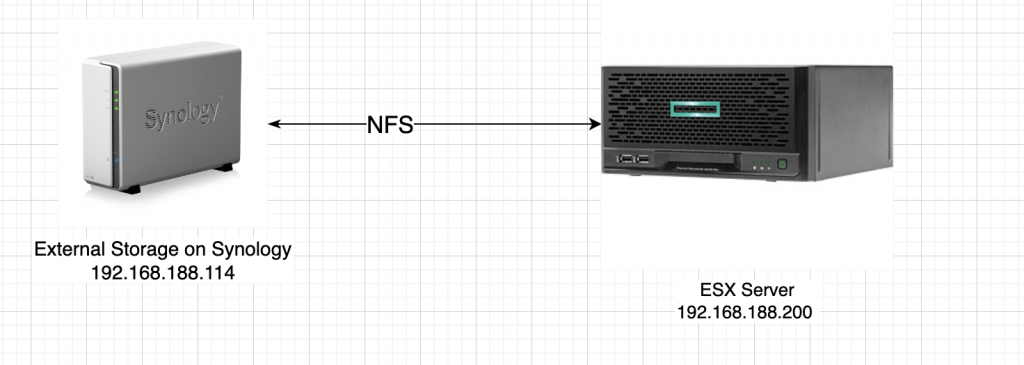
- Create and configure shared folder on Synology
First log into your Synology. Go to Control Panel and open Shared Folder.
Click „Create“ to add new shared folder. Give some name for new shared folder and click Next few times to finish the wizard.
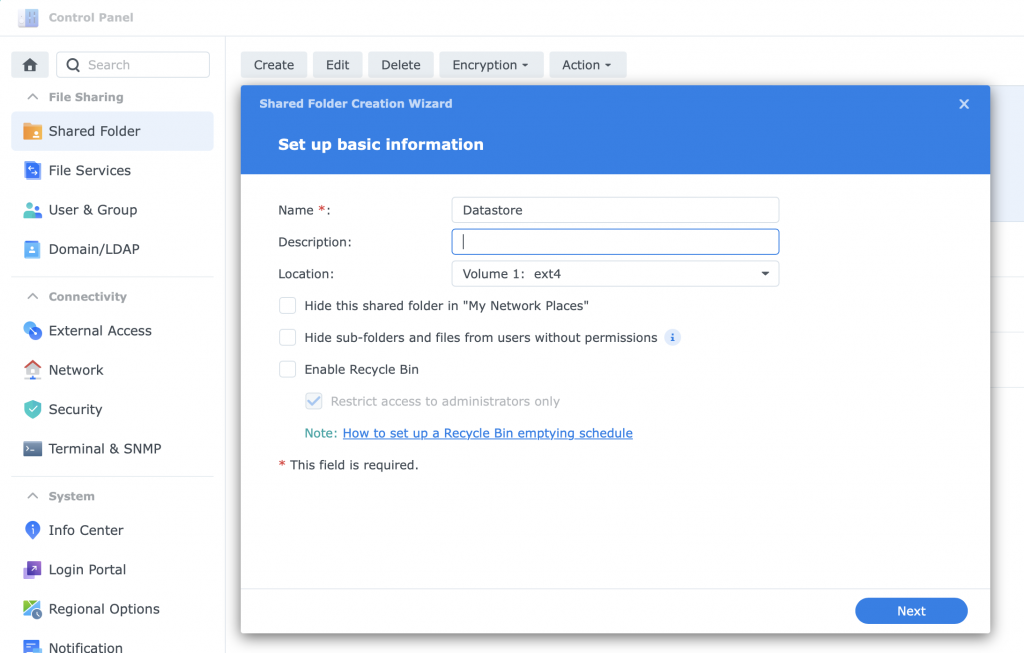
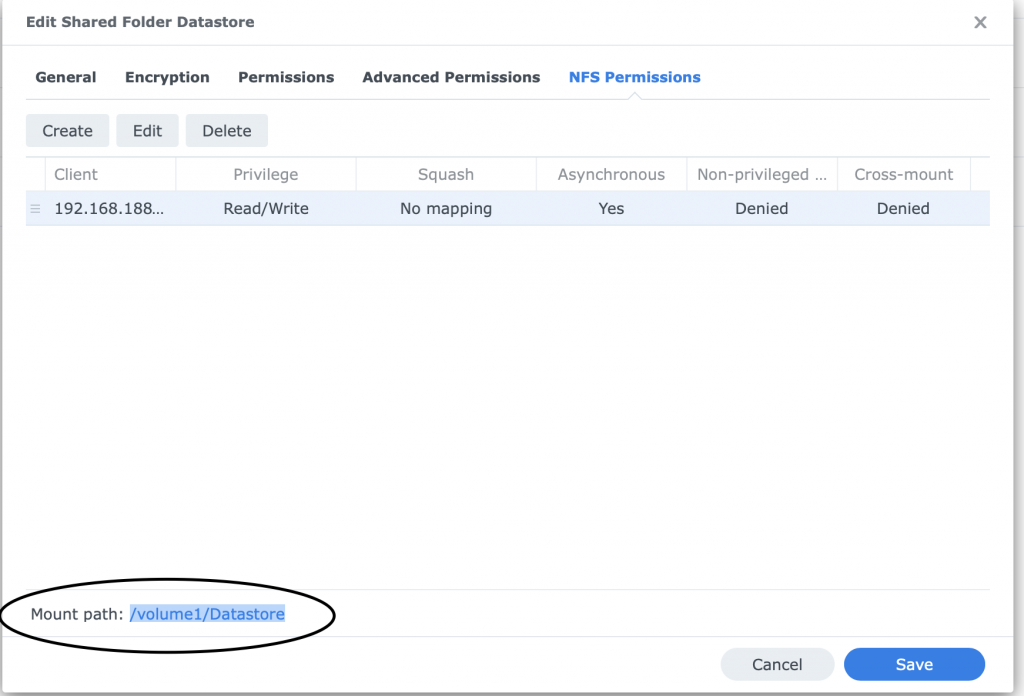
Now mark new created shared folder and click Edit. Then go to „NFS Permissions“ Section. Here click „Create“ and put IP address of your ESX host to allow Synology connect from this server. Im my case IP address is 192.168.188.200:
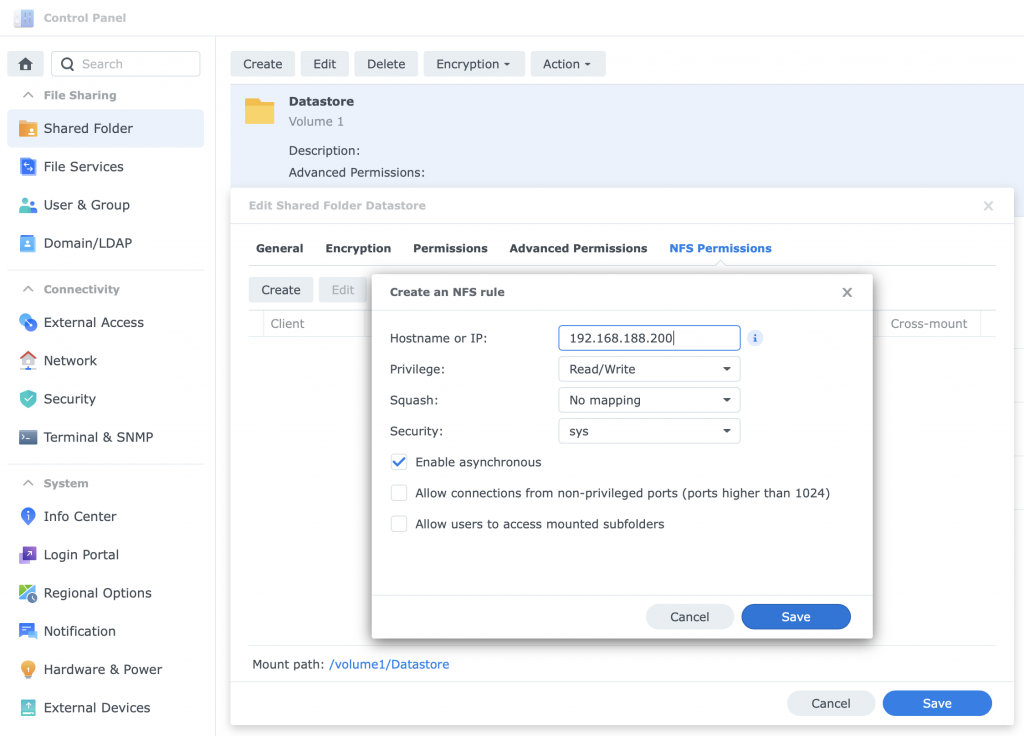
Copy Mount path from NFS Permission window, in my case /volume1/Datastore :
2. Create and mount external datastore on ESX host
Log in to your ESX host. Go to „Storage“ and click „New datastore“. Then choose „Mount NFS datastore“:
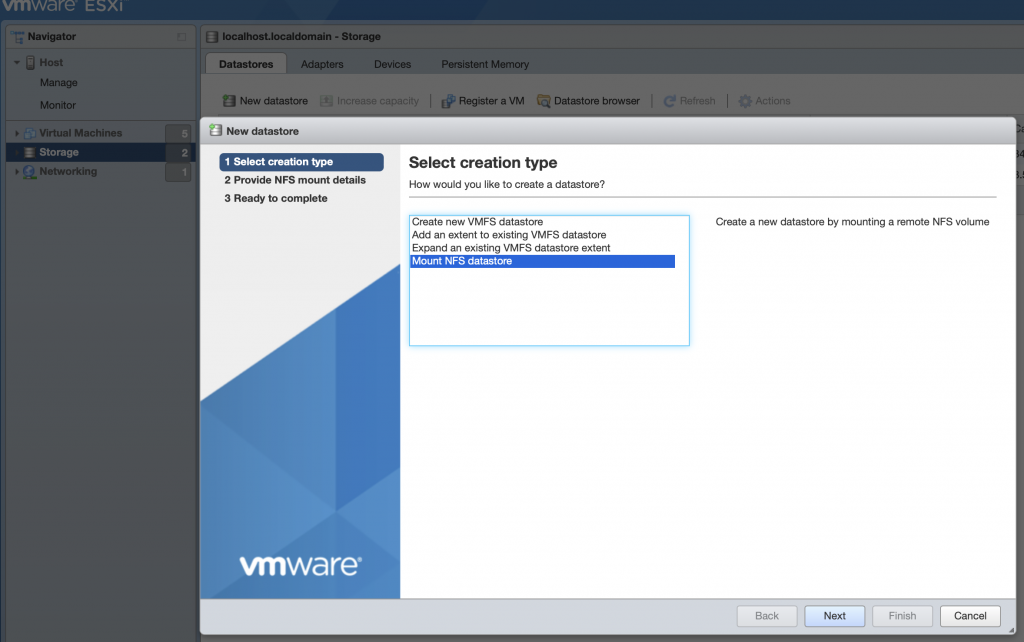
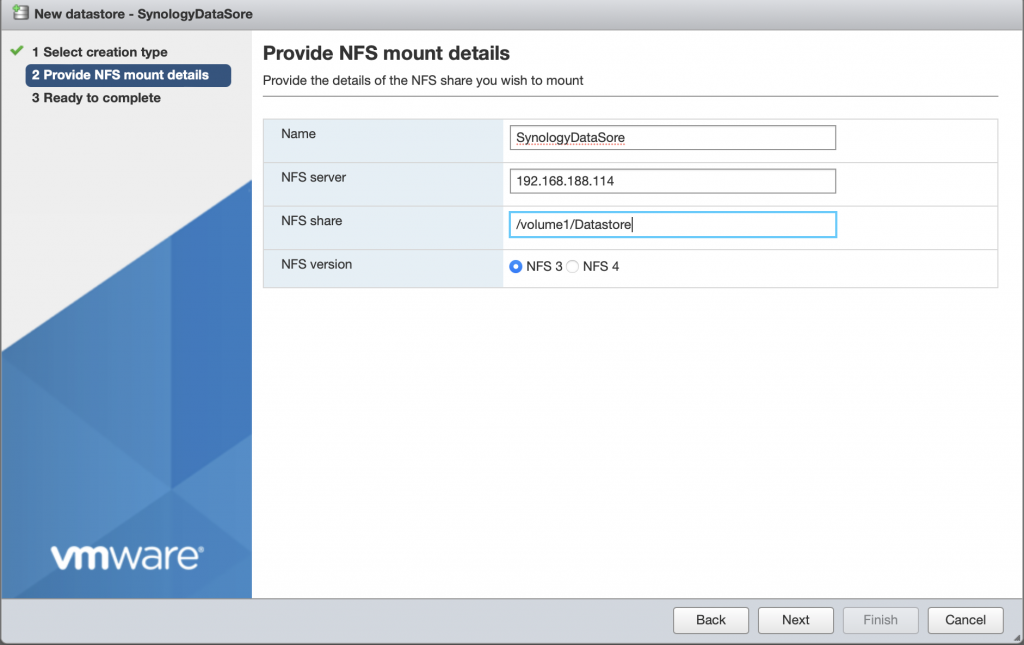
Click „Next“. Now you have to put some name for your datastore, NFS server (IP address of Synology) and NFS share (mount path noticed from previous step).
For my case:
Name: SynologyDataSore
NFS server: 192.168.188.114
NFS share: /volume1/Datastore
Click Next and Finish.
We have created an external datastore for our ESX host:

Additionally you can configure some quotas on Synology to limit storage capacity for your ESX host.